
Can You Trade on TradingView? A Beginner’s Guide
Yes, you can trade on TradingView, but only through a broker account you connect to it. TradingView is a charting platform, not a broker. It shows you the market, and your broker holds your funds and executes your orders.
Let’s explain how that connection works, what you can do from a chart, which tools matter for beginners, and what to understand about risk before you place a first trade.
Key Takeaways
- You can trade on TradingView once you link a supported broker account, because TradingView itself does not hold funds or execute orders.
- Paper trading lets beginners practise placing orders with simulated money before they start trading live.
- Day trading carries a high risk of losing money, so understand how orders, leverage and risk controls work before going live.
Can You Trade on TradingView? The Short Answer
TradingView describes its trading feature this way: you can trade directly from Supercharts by connecting multiple verified brokers and crypto exchanges. Your orders are placed from the chart and then routed to the broker you linked, which executes them.
That distinction matters for beginners. Questions like “can I trade on TradingView” and “can you trade in TradingView” usually assume one account does everything. In practice, there are two:
- A TradingView account, which gives you charts, indicators, alerts, and the community.
- A brokerage account, which holds your money and lets you execute trades.
TradingView’s own help page adds a caveat: the trading features available are determined by your broker. Order types, instruments, and account features vary from one broker to the next.
What TradingView Is (and Isn’t)
TradingView is a web-based trading platform for chart analysis, with desktop and mobile apps. It combines interactive charts, watchlists, screeners, alerts, community ideas, and broker connections. Its core purpose is market analysis, and it works as a charting platform first and an order screen second.
It is not an execution-only service on its own, and it does not decide what you can trade. Which markets you can reach depends on what your broker offers on the platform.
Traders and investors use it to follow global markets in one place, including stocks, crypto, futures and forex. Sources put the size of its user base anywhere from tens of millions to 100 million traders, and the figures vary, so treat any single number as approximate. What matters for a beginner is that the community is large enough to see how other traders share chart ideas, although those ideas are opinions and not instructions.
How to Trade on TradingView, Step by Step
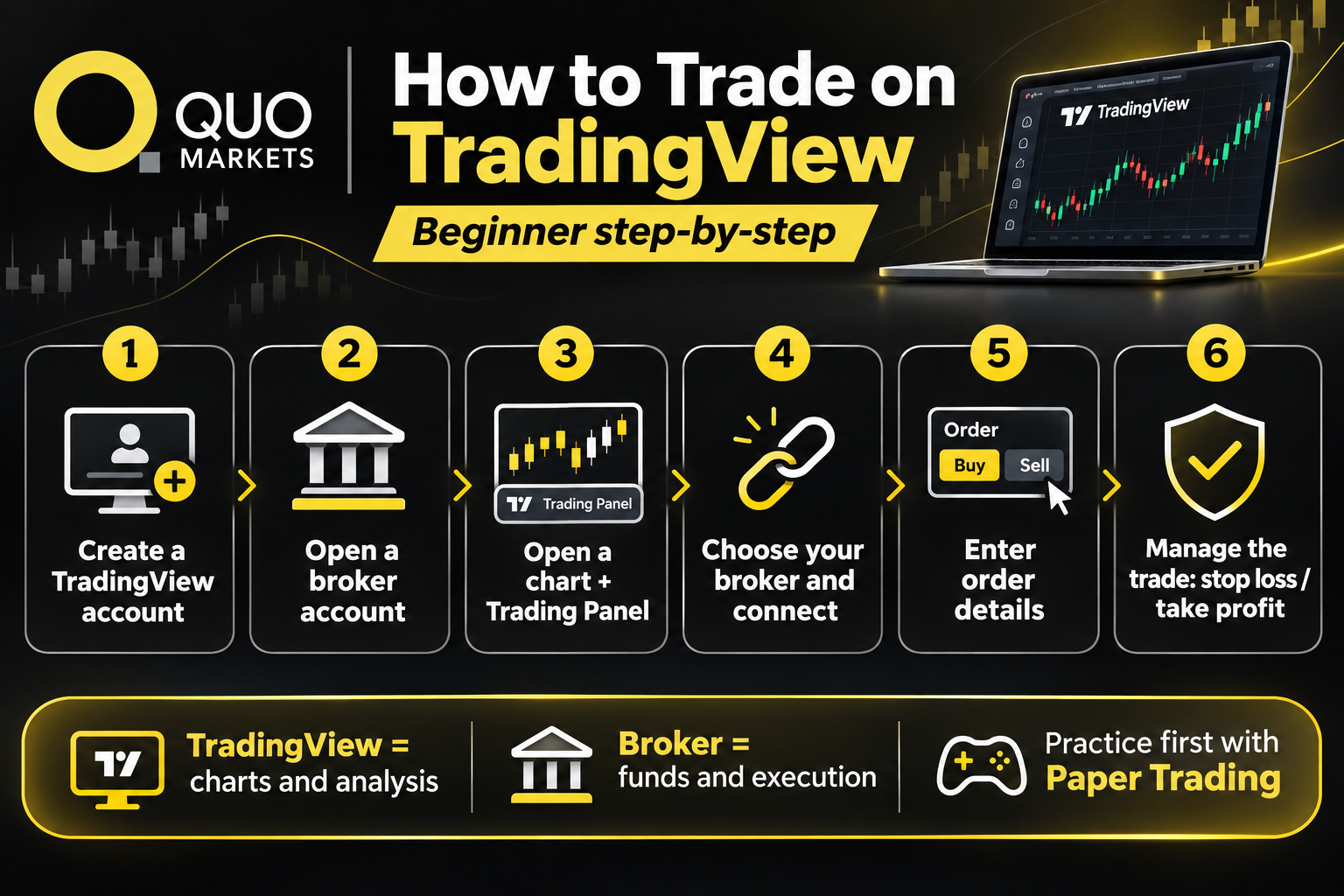
The process is similar across supported brokers:
- Create a TradingView account. You can sign up for free on the TradingView website, and a free account is enough to start.
- Open a brokerage account with a broker integrated with TradingView, and complete its verification.
- Open a chart and click the Trading Panel tab at the bottom of the screen. It lists the supported brokers.
- Select your broker and log in with your broker credentials to authorise the connection.
- Open the order panel and enter your order details.
Broker onboarding pages describe the same flow: log into TradingView, open the Trading Panel, select your broker, and follow the prompts to authenticate your account. Once connected, you get direct access to the order panel and can manage positions from the chart.
If you don’t have a broker yet, TradingView’s help page says it lists brokers that are each licensed and verified. You should still confirm which company is registered and regulated in your country, because availability depends on local law. Such distribution of financial products may be restricted in some countries, and a broker may not be able to serve clients where you live.
You can also connect more than one broker. TradingView says you can switch between them anytime, which means you can run multiple accounts from the same chart, one at a time.
What You Can Do From the Chart
After linking an account, the trading panel works as an order ticket attached to your chart. Typical functions include:
- Order entry. You can place trades using a market order, which fills at the current price, or a limit order, which waits for a price you set. Stop orders trigger once the price reaches a level you choose. The order window lets you specify order type (market, limit, stop), quantity, and price.
- Stop loss and take profit. Many brokers let you attach protective orders at a price level. A stop loss closes a position if the price moves against you by a set amount. A take profit closes it when a target price is reached.
- Open positions and working orders. You can view pending orders and open positions in the panel, and modify or close them from there.
- Profit and loss. The panel shows the running result of each position.
Features differ by broker. Check what your broker supports before relying on a specific order type.
Trading Tools Beginners Use Before They Trade
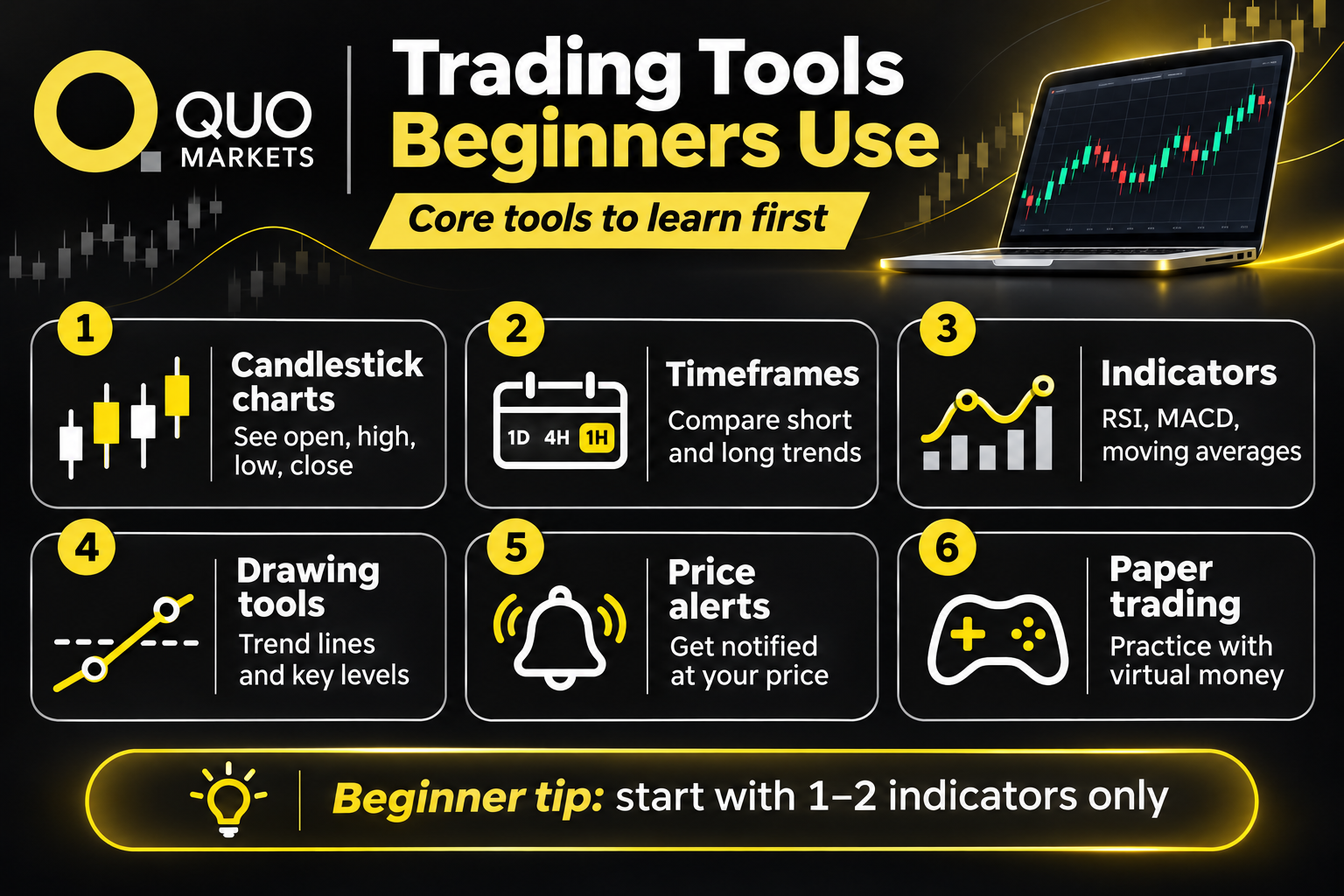
Many people open TradingView for analysis first and trade later. These are the trading tools worth learning.
Chart types. Candlestick charts are the most common choice. Each candle shows the open, high, low, and close for its time period. Line, area and step line charts give a simpler view of price, and there are further styles such as volume candles, Heikin Ashi and Renko.
Timeframes. You can view the same market from one-minute up to monthly charts. Looking at several timeframes helps you judge whether a short-term price movement fits a larger trend. Paid plans allow more charts per tab for this.
Indicators and technical analysis. TradingView’s features page lists 400+ built-in indicators and strategies. Popular examples for technical analysis include RSI, MACD, moving averages and Bollinger Bands. An indicator summarises price or volume data and does not predict the future. Beginners often add too many at once, so start with one or two and learn what each measures.
Drawing and line tools. Trend lines, horizontal levels and Fibonacci tools let you mark areas on a chart, such as a price level where the market has reacted before. These line tools are available on the free version too.
Price alerts. Alerts watch the market for you. TradingView says you can configure alerts using 13 built-in conditions, and notifications can arrive by browser, email, app, or webhook. An alert is only a notification. You decide whether to act when the price reaches your level.
Advanced tools. Pine Script is TradingView’s programming language for custom indicators and strategies. Beginners can ignore it at first, but it is one of the additional tools that experienced users explore later.
Fundamental data. TradingView also offers company data such as financial statements and an economic calendar. Together, they support comprehensive financial analysis that looks at the economy and a company’s finances alongside price patterns. The calendar flags upcoming economic events, which can move markets and widen spreads around the release time.
Paper Trading: Practise Before You Use Real Money
TradingView includes a built-in paper trading mode. Its features page describes it as trading virtual money with a realistic broker simulation. QuoMarkets also offers its own demo account, and the two work separately.
Practice trading lets you:
- Learn how the order panel works without using real funds.
- Test how stop-loss and take profit orders behave.
- See how quickly a position can move against you.
- Test different strategies and build a trading plan before going live.
The limits matter as well. Simulated fills can differ from live fills, and trading with virtual funds does not reproduce the pressure of having real money at stake. Treat it as a way to learn the tools and not as a preview of live results.
Free Version or Paid Plan?
You can use TradingView without paying. The free version gives you charts, drawing tools, a limited number of indicators per chart, alerts, and paper trading. Sources disagree on the exact free limits, and TradingView changes its plans, so check the current pricing page before deciding.
Paid options raise those limits. Commonly cited differences in the premium plans and other paid tiers include:
- More indicators per chart
- More charts per tab, which helps with multi-timeframe analysis
- More alerts
- More historical data on the chart
Data feeds depend on the exchange and on your plan or broker, so real-time data is not guaranteed on every market. For many beginners, starting with the free version and moving to a paid version only after hitting a limit is a reasonable way to work.
Is TradingView Good for Day Trading?
Many day traders use TradingView because the tools suit short-term analysis. You can follow live markets on several timeframes side by side, set alerts so you aren’t watching a screen all day, and place orders without leaving the chart. A broker’s trading experience on the platform depends on its connection, its data, and its order types.
Day trading means opening and closing positions within the same day. It carries a high risk of losing money, and losses can build quickly when trades are frequent or leveraged.
Before using any platform for short-term trading, understand:
- Costs. Spreads, commissions, and overnight financing add up with frequent trades.
- Leverage. Leverage magnifies losses as well as gains, and losing money rapidly is a recognised risk of leveraged products.
- Execution. Orders may fill at a different price from the one you saw, especially in fast markets.
- Data and connection. A dropped connection or delayed data can affect a live position.
TradingView supplies the charting. Managing risk is your responsibility.
Trading CFDs, Forex and Complex Instruments
Many brokers on TradingView offer CFDs, which let you trade the price movement of a financial instrument without owning it. People use CFDs to trade forex, indices, commodities and shares. Currency pairs such as EUR/USD are among the major markets that beginners meet first.
CFDs are complex instruments. Leverage means a small move in price can produce a large gain or loss, so you can lose money rapidly. Read your broker’s risk disclosures, and understand how margin and stop-loss orders work, before you start trading with real funds.
Common Mistakes Beginners Make
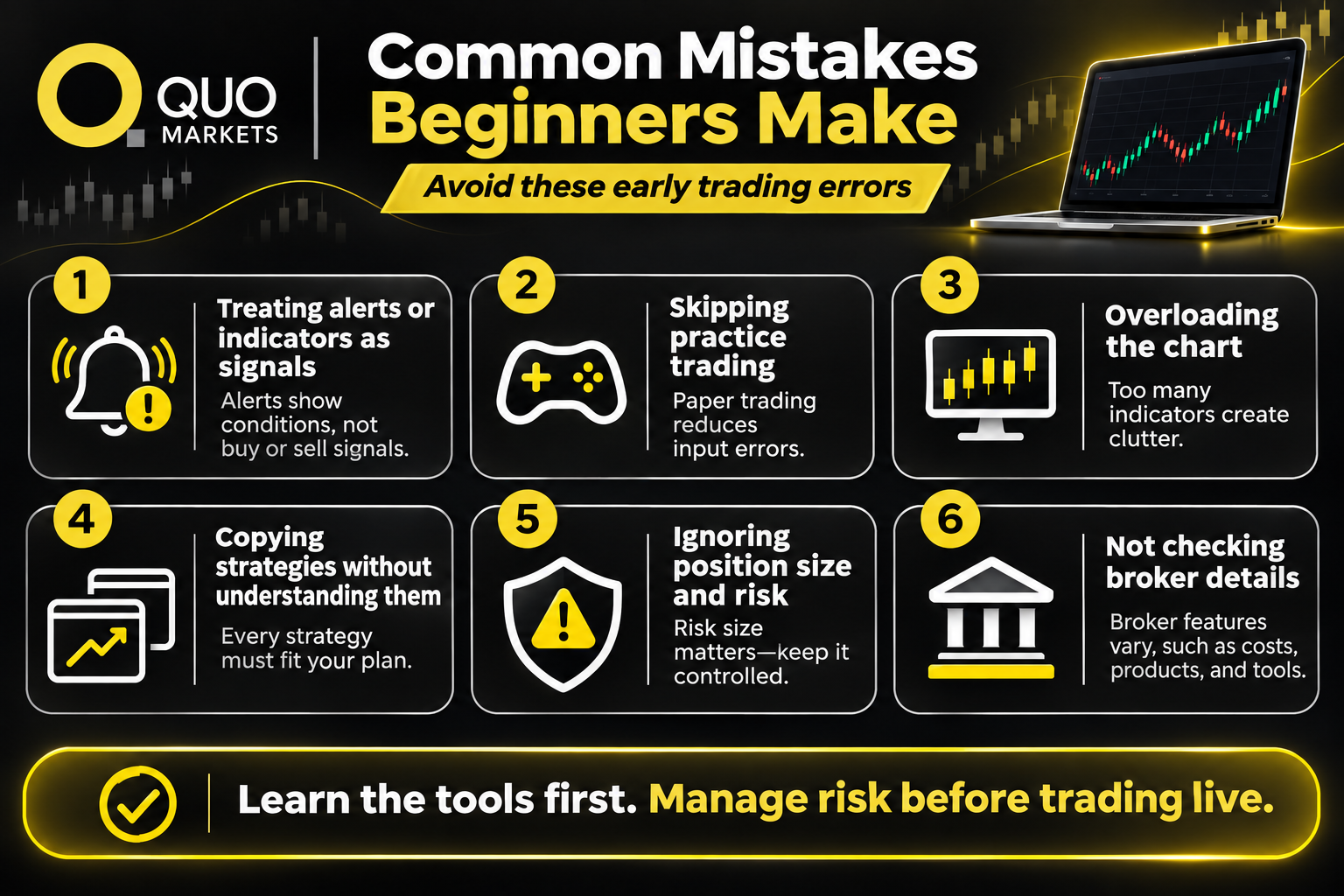
- Treating alerts or indicators as signals. They show conditions on a chart and do not tell you what to do.
- Skipping practice trading. Learning the order panel with real money invites costly input errors.
- Overloading the chart. Too many indicators make a chart harder to read.
- Copying a trading strategy without understanding it. Ideas shared by other traders are opinions, and a setup that suits someone else’s plan and risk tolerance may not suit yours.
- Ignoring position size. Without a plan for how much you can afford to lose on one trade, a few bad trades can do disproportionate damage.
- Not checking broker details. Instruments, leverage and order types depend on the broker and on your local regulation.
Trade on TradingView with QuoMarkets
A QuoMarkets account connects to TradingView, so clients can trade from the TradingView chart in one interface instead of switching between an analysis tool and a separate order screen.
TradingView’s charts come with professional indicators, drawing tools, and multiple timeframes. You can set price alerts directly on the chart, so a level you have marked can notify you when the market reaches it. QuoMarkets also offers a TradingView Premium subscription at no cost to traders who open an account through the broker portal.
If you are new, you can use the platform to learn the tools first, then decide whether and how to trade live once you understand the risks.
FAQs
Do I need a TradingView account to trade on TradingView?
Yes. You log into TradingView and connect your broker account from the trading panel.
Does TradingView execute my trades?
No. TradingView sends your order to the connected broker, and the broker executes it.
Can I use TradingView for paper trading only?
Yes. Paper trading uses simulated funds and does not require a broker connection.
Trading CFDs, including oil and other commodities, involves a high level of risk and may not be suitable for all investors. Leverage can work both for and against you, magnifying both profits and losses. Past performance is not a reliable indicator of future results. Please ensure you understand the risks involved and seek independent financial advice if necessary before trading.