
Table of Contents
- Getting Started with MetaTrader 5: From Download to Your First Trade
- Why It Matters Where You Get MT5
- Installing MT5 on Desktop
- Setting Up the MT5 Mobile App
- Creating Your MetaTrader 5 Account
- Making the Terminal Your Own
- Placing Your First Trade
- Final Remarks
- FAQs
Getting Started with MetaTrader 5: From Download to Your First Trade
Picking the right trading platform is one of the first real challenges any investor faces. MetaTrader 5 has earned its reputation as the go-to solution for multi-asset trading. It packs serious technical analysis tools, algorithmic trading capabilities, and flexible order execution into one package. But all of that power sits idle until you have the software up and running properly.
Here is a walkthrough of the full process, from pulling the MT5 installer to placing your very first trade, so your workspace is ready to go from day one.
Why It Matters Where You Get MT5
Security comes first in anything finance-related. Before you grab an MT5 installer, make sure it is coming from a trustworthy source. The safest options are the official MetaQuotes website or your regulated broker’s portal. Going through official channels keeps you away from tampered software that could carry malware or security holes. Many reputable brokers include a dedicated MetaTrader 5 download link in their client area, and those versions often arrive pre-configured with the broker’s server details, which cuts down your setup time considerably.
Installing MT5 on Desktop
Most active traders stick with the desktop version – it handles automated strategies and multiple chart windows without breaking a sweat.
How to Install MetaTrader 5 on Windows
To get MetaTrader 5 running on a Windows machine:
- Head to the QuoMarkets downloads page and click the MetaTrader 5 download for Windows button.
- Find the installer in your downloads folder and double-click it to get started.
- A setup window will appear. Click Settings if you want to pick a custom installation folder, or just hit Next to go with the default.
- The installer pulls the necessary files from MetaQuotes servers. Once the progress bar finishes, click Finish.
- The platform should open on its own. If it does not, find the MT5 icon on your desktop and launch it from there.
MetaTrader 5 Mac Installation
MetaTrader 5 does not have a native macOS build. Most brokers handle this by offering a pre-configured installer that runs MT5 through a compatibility layer like Wine. Download the DMG file from your broker’s site and drag the MetaTrader 5 icon into your Applications folder. The compatibility layer runs quietly in the background, and the experience you get mirrors what PC users have.
Setting Up the MT5 Mobile App
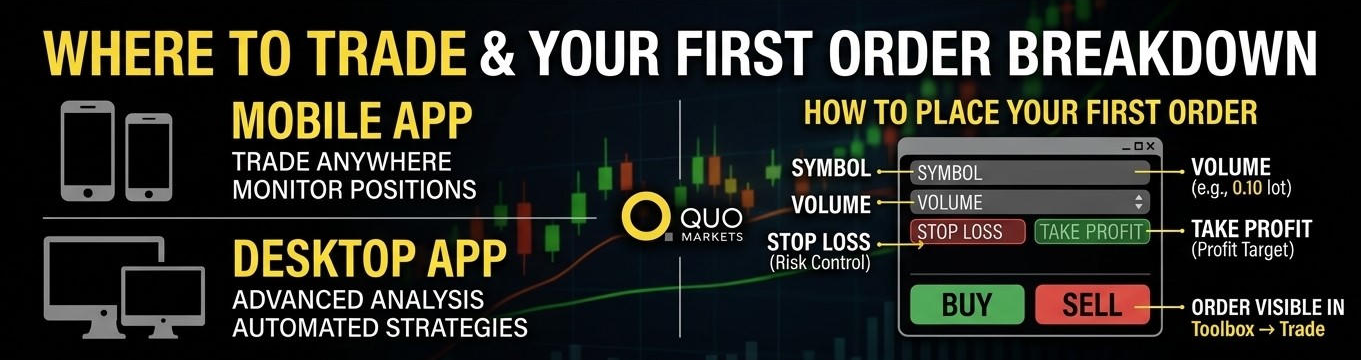
Markets move fast, and you will not always be at your desk. The mobile app keeps you connected to your positions wherever you are.
Android: Open the Google Play Store, search for MetaTrader 5, and tap Install.
iOS: Go to the Apple App Store, search for the platform, and follow the on-screen steps to install it.
Once the app is on your phone, open it and tap the plus icon in the accounts section. Search for QuoMarkets in the broker list and enter your login credentials. The mobile interface is built for touchscreens, but it still carries the core technical indicators you rely on when trading away from your main setup.
Creating Your MetaTrader 5 Account
The software needs a live data connection before you can see any price action, and that means linking it to a broker account. If you are new to this, starting with a demo account is a smart move – you get to learn the platform without putting real money on the line.
To connect MT5 to QuoMarkets:
- Go to the QuoMarkets website and register for a client area.
- Select either a Demo or Live account.
- Check your email for your login ID, password, and server name.
- In the MT5 terminal, go to File and select Login to Trade Account.
- Enter your details and pick the correct server from the dropdown. A green connection icon in the bottom right corner, along with a short chime, tells you the login worked.
Making the Terminal Your Own
The default chart colors get the job done, but most traders personalize their setup over time. To add instruments to your Market Watch, right-click inside the window and select Symbols, then browse through forex pairs, commodities, indices, and more.
To change the look of a chart, right-click on it and go to Properties. From there, you can adjust colors and switch between candlesticks, bar charts, or line charts. Indicators like Moving Averages or the RSI can be dragged straight from the Navigator panel onto any chart. Once you have a layout you like, right-click the chart, go to Templates, and save it; then apply that same look to any new chart with a couple of clicks.
Placing Your First Trade
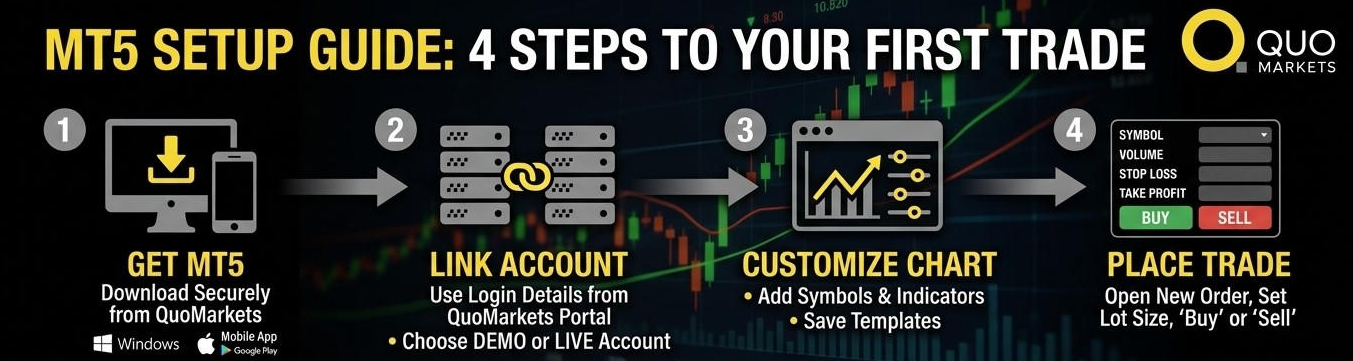
With your setup complete, you are ready to enter the market. The most common way to open a position is through the New Order window.
Click the New Order button in the toolbar or press F9. A dialog box opens where you set your trade parameters:
- Symbol: Make sure the right asset is selected.
- Type: Market Execution fills your order immediately. Pending Order lets you set a specific entry price.
- Volume: Your lot size. 1.00 is a standard lot.
- Stop Loss and Take Profit: These close your trade automatically at pre-set price levels, essential for managing risk.
Once you have reviewed everything, click Buy or Sell. Your open trade appears in the Toolbox panel at the bottom of the screen under the Trade tab, where you can watch your profit or loss update in real time.
Final Remarks
Getting MT5 set up is just the starting point. The platform goes much deeper – the Strategy Tester lets you backtest automated trading strategies, and the built-in economic calendar helps you stay on top of market-moving events.
As you grow more comfortable, explore features like one-click trading and depth of market views. Consistency matters in trading. Spend time on your demo account until opening and closing positions feel automatic before you move to live markets.
FAQs
How to add a broker to MetaTrader 5?
Open the platform, go to File, then Open an Account. Type your broker’s name in the search bar, select them when they appear, and click Next to enter your login credentials.
Can beginners use MetaTrader 5?
Absolutely. The interface is laid out logically, and the demo account option gives you a safe space to learn the mechanics of forex and CFD trading before risking any real capital.
What do I do if I forgot my MetaTrader 5 password?
Your server details were included in your original account welcome email. If you cannot track that down, log into your broker’s client portal – your account credentials and server assignment are listed there.
Is MetaTrader 5 free to download?
Yes, the software itself costs nothing. To trade in live markets, you will need to fund an account with a broker like QuoMarkets.